Sunday, October 30, 2016

Videos and QR Codes in the Library

          For this assignment, I was asked to look at how YouTube and QR Codes could be used in the library.  Let me first begin with videos and YouTube.  Kids nowadays spend hours on end watching videos on YouTube, from gaming videos, makeup tutorials, music videos and more.  I know this for a fact because I'm currently staring at my own two children who love nothing more than sitting in the exact same spot on the couch all weekend in their pjs watching videos on YouTube. Therefore it makes so much sense for us to attempt to reach out to our students using this resource and connect with them in a way which they can relate.  YouTube provides libraries an excellent way to showcase student work, share instructional videos, and offer a glimpse into what is going on in the library.  Here are just a few video recommendations from four channels I looked at as I was evaluating the usefulness of YouTube in the library.

Norman High School Library

Video that is most helpful to students; How to Use EBSCOHost


Video that students would like the best; Tiger Visits The Norman High Library


The Unquiet Library


Video that is most helpful to students; How to Add a Web-Based Video (YouTube, CNN Video, CBS News, Etc.) To Your Netvibes Page


Video that students would like the best; Why I Love Evernote: The Student Perspective


Pikesville High School Library

Video that is most helpful to students; PHS Financial Aid Workshop 2013


Video that students would like the best; AVID Pimp My Binder 2012


Bonnie Branch Middle School

Video that is most helpful to students; NHD Annotation Writing


Video that students would like the best; Bring Them Back Overdue Library Book Parody


          Next I explored Animoto for the purpose of making a book trailer and QR codes.  I have to say I was very excited about learning how to use each of these resources and how I might incorporate them into my library.  I really enjoyed my experience with Animoto and found it fairly easy to use as far as adding photos, text and music to my videos.  I did encounter a problem with a couple of my photos and them not being shown in their entirety.  I even tried adjusting the size and switching the picture, however for some reason, while the entire picture was shown on my tiles on the creation screen, only a portion was shown on the actual video.  I'm noticing that the images with the problems were square images as opposed to the others which were rectangular, so perhaps that is the problem.  Overall however, I was pretty happy with my first attempt at making a book trailer.  Scan the QR code below to check out the book trailer I made for Bridget Heos' book Mustache Baby.
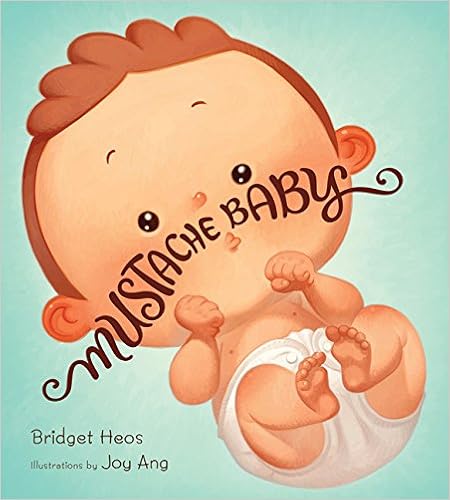

When Baby Billy is born with a mustache, his family takes it in stride. They are reassured when he nobly saves the day in imaginary-play sessions as a cowboy or cop and his mustache looks good-guy great. But as time passes, their worst fears are confirmed when little Billy’s mustache starts to curl up at the ends in a suspiciously villainous fashion. Sure enough, “Billy’s disreputable mustache led him into a life of dreadful crime.” Plenty of tongue-in-cheek humor and cartoonish illustrations make this the perfect baby-shower gift for a mustachioed father-to-be.


          Besides sharing book trailers, I also came across some other great ways to use QR codes in the library.  Placing a QR code near the copier or self check out station could be a great way to offer instructions to those students who need assistance.  Place QR codes around the shelves in the library that direct students to websites for further information on specific topics.  A QR code placed near the door could be helpful for students and parents to scan and quickly gain access to the library's website, blog, or social media page.  Or how about a library tour for new students/parents.  Tired of being asked for another form of some kind or where they can get one?  It could be as easy as a quick QR code scan away.  The possibilities really are endless.
Resources


Animoto. Retrived October 29, 2016 from https://animoto.com

Crayons and Croissants.  (2013, July 29). Mustache baby - Book review.  Retrieved October 29, 2016 from https://crayonsandcroissants.com/2013/07/29/mustache-baby-book-review/

Eduscapes.  Scan me!  QR codes in the school library.  Retrieved October 29, 2016 from http://eduscapes.com/sessions/qrcodes/

Heos, B. Mustache baby. Bridget Heos.  Retrieved from http://www.authorbridgetheos.com/mustache-baby.php

Jones, G. (2014, August 17). 10 things to do with QR codes on back to school night.  The Daring Librarian.  Retrieved October 29, 2016 from http://www.thedaringlibrarian.com/2014/08/10-things-to-do-with-qr-codes-on-backto.html

QRStuff.  QR code generator.  Retrieved October 29, 2016 from http://www.qrstuff.com/

the1stdaughter. (2013, May 13).  Mustachebabyinterior. There's a Book.  Retrieved October 29, 2016 from http://www.theresabook.com/2013/05/book-review-and-giveaway-mustache-baby-by-bridget-heos/mustachebabyinterior/


Sunday, October 23, 2016

Instagram, Vine, and Screencast

          This week's assignment was a challenging one for me.  I actually had an Instagram account that had not even one post, my only experience with Screencasts were links to videos from professors, and I had never even heard of Vine!  All in all though I would say that I had a very positive experience, not only in my venture to figure out how to use all of these applications, but in the ideas I stumbled across with how to use these features in my library and how to share them with teachers for use in their classrooms.

Image result for instagram

          Since I had the most experience with Instagram, although limited, I decided to start there.  Instead of using my personal account, I chose to create a brand new one specifically for school and library information.  Sadly most of my "friends" or followers aren't that into what's going on in my library.  Shocking?  I know right!  I didn't download any additional apps to add text to my photos, but perhaps in the future.  I could definitely see value in that. I think Instagram is a great place to share photos of reading recommendations, new books in the library, important information and activities taking place in the library.

Image result for screencastomatic

          My next exploration was Screencast-O-Matic.  I wanted to create a video showing students how to check in and out their own materials since we've been having a little trouble with that, however with no scanner at home, that idea quickly went out the window.  I do think that would be a great idea though and will be making a video on that soon.  For now I settled on creating a screencast exploring our library webpage.  The application itself was easy to install and use and I love that it gave a countdown of 3, 2, 1 to allow you to ready yourself.  You can record just the screen, just the webcam or both.  Here is the video I created, Wrangler Library Webpage.

Image result for adobe spark

          After that, I decided to use my IPhone to give Adobe Spark a try.  It had a variety of templates to use to help you in creating a video best for your purpose including Show What Happened, Teach a Lesson, Promote an Idea and more.  Or you could choose to start from scratch.  I decided to use a template to showcase our recent Poetry Share held in the library this past week.  It gave me a set of slides and provided me with an idea of what to include on each slide.  I had the option of adding icons, photos or text to each and could make a recording to accompany it.  Here is the short video I created about the First Annual Richter Wrangler Poetry Share.

Image result for vine

          The last application I utilized was Vine.  Vine is a video sharing site that limits users to a video of 6 seconds in length and plays on a loop.  While I guess I could see possibilities for use of this app in the classroom or library, I have to say I was definitely the least impressed with it.  From the reading I did, they claimed you would be surprised how long 6 seconds actually is.  I disagree.  I struggled to think of anything I could share with only 6 seconds and went through several video attempts where there simply was not enough time to cover all the information I had.  It does force the sharer to get right to the point, which I guess has it's advantages, but with all the other options available, I just don't see myself using this app all that much.  I did manage to squeeze in a quick shout out to all our Wrangler Readers of the Week.

          Our students live in a digital world and applications such as these are a great way to reach out to them and connect on their level.  A big part of our job as librarians is to be knowledgeable of the variety of technological sources out there and be able to share that information with students, staff and colleagues.  As much as I was dreading it, I found this assignment to be extremely beneficial and I really learned a lot!

Saturday, October 15, 2016

Infographics

          For my very first venture into infographics, I played around with and compared three sites, easel.ly, infogr.am, and Piktochart.  I began with infogr.am, where with the free Basic program I was allowed only public content, 10 infographic projects, up to two map charts and up to two image downloads.  It was fairly easy to use.  I was given the option of 11 different templates and upon selecting one, it was easy to edit the title and charts/graphs, add text and media, as well as upload pictures from my computer.  An upgrade to the Pro plan for about $230/year allows you to store your project privately and offers a much wider variety of templates, maps and image options.
          The second site I toyed around with was easel.ly.  Like infogr.am, I was easily able to create an account by linking to my Facebook account.  However, I wasn't prompted to enter some absurdly weird username as I was in infogr.am.  I was taken directly to the project page where I could choose a template.  There were an abundance of publicly available visuals that you could choose and edit, or there was an option to start from scratch.  With the click of a button you could insert objects in a variety of themes, stock photos or you tube videos.  You can also change the background, draw, add shapes, text or charts.  I like that there was also a zoom button where I could shrink the image and view the entire infographic without having to scroll the page down.  With the free account I had access to 60 free images and 10 fonts.  By upgrading to the Pro account for only $3/month you could access over 600,000 images and 50 fonts.  It would also allow you to keep your work private and upload your own fonts and logos.
          The last site I explored and my favorite was Piktochart.  Like the ones before it, it was easy to sign up using my Facebook account and I was taken to the project screen were I could choose to create an infographic, presentation, poster or report.  There were 10 templates to choose from with my free account or I could start from scratch.  With the graphics button there was plenty to choose from including, shapes, lines, icons, photos and frames.  It was also a breeze to upload my own pictures from my computer.  There were plenty of backgrounds to choose from, as well as text options and frames.  You could easily insert and edit charts, maps and graphs, and even insert a link to a Survey Monkey survey!  And this was all with the free account.  There are two options for upgrades, a Lite account for $15/month and a Pro account for $29/month.  I only wish there were a zoom in/out button so that I could easily view the entire graphic on one page.  It was a little difficult to arrange properly when I couldn't see the whole thing at once.  Here is the graphic I ultimately created using information from the Pew Research Center...


Sources

Pew Research Center. (November, 2012). Politics Fact Sheet. Retrieved           

Saturday, October 8, 2016

Blogs and Blog Readers

This blog reader assignment turned out to be super difficult, not because it was hard per se, but because I kept finding all these amazing ideas and getting side tracked while figuring out how to incorporate them into my own library program!  Blogging is such a great way for librarians to share ideas and experiences and learn from others. 

After reading Vicki Cassidy’s blog post on the 10 Best Feed Reader Apps, I decided that I would give Feedly a try.  It seemed simple, is available on the Web, iOS, and Android, and has the ability to share to Twitter, Facebook and Pinterest.  But, the most important aspect is the fact that it is FREE for a basic plan where you may add up to 100 sources.  Of course an upgrade to the Pro plan is also available for about $65/year, but for the purposes of this assignment, the basic plan was perfect for me. I actually found this assignment to be very beneficial because I do currently follow a few blogs that I have bookmarked on my browser and must click through the favorites menu again and again to scroll to the one I want to read.  After creating my Feedly account, I added each of the blogs I keep up with, plus a few more, and there they all were, on one convenient page!

Here is a list of just a few of the blogs I chose to follow:

Watch. Connect. Read: Exploring Children’s Literature Through Book Trailers

This is one of my favorite blogs, because it gives you a heads up on what is new and coming up in the world of children’s literature.  The numerous book trailers that Mr. Schumacher shares is just one of the things that make this blog so awesome.  But more than trailers, he shares cover reveals that build excitement for upcoming books, and interviews with authors and illustrators who share their processes and inspirations. 

Nerdy Book Club

Nerdy Book Club offers blog posts on an almost daily basis thanks to contributions from guest bloggers who all have a love of children’s literature in common.  It ranges in posts from recommended books lists, book reviews, reading experiences and suggestions.  I also loved the posts from Nerd Camp that allowed readers to glimpse some of the information that was shared there although they were unable to attend. 

The Daring Librarian

I love Gwyneth Jones.  She’s exactly the kind of librarian that I hope to be.  She’s smart, she’s creative and oh so cool.  Her blog is filled with new and exciting activities and programs going on in her library, ways to incorporate the latest technologies, and general advice for educators.

The Library Voice

The heading on the page says, “A place to be heard through creating, technology, connecting, reading, collaborating and noise.”  This blog is literally all of those things.  It is a great resource for lesson plans and ideas on how to integrate technology into your classroom and library.  From websites that allow students to create, to apps that help teachers connect with parents, this blog has it all.

The Unquiet Librarian

The first post I saw on this page, about having a student poetry reading, inspired me to do something similar in a couple weeks when our fifth graders complete their poetry unit.  The fifth grade teachers and I are so excited.  This blog is filled with other ideas and suggestions involving reading, writing and classroom activities.  With posts devoted to inquiry learning, student publishing, and tech recommendations, this is a good blog for librarians to follow.

Resource

Cassidy, V. (2015, September 22). The 10 best feed reader apps for RSS, news, and more. 
          [Web log].  Retrieved from https://zapier.com/blog/best-rss-feed-reader-apps/